How to use Tabease.
Everything you need to turn a browser full of tabs into a map you can actually follow — from your first block to keyboard shortcuts.
01 Getting started
Install Tabease from the Chrome Web Store, then click the Tabease icon in your toolbar. This opens the canvas — your visual workspace for tabs, ideas, and workflows.
You don't need an account to start. The canvas is fully usable right away; signing in only matters once you want cloud sync or a Pro plan.

A project canvas mid-research, laid out radially from a root node
02 Building your map
Add a block
Double-click any empty area of the canvas to create a new block, or press A to add one at the centre of your current view.
Drag a tab onto the canvas
Open the Opened Tabs sidebar and drag any tab directly onto the canvas. Drop it near an existing node and Tabease auto-connects it — no manual wiring needed.

Dragging jstor.org onto the canvas — it snaps to the nearest node
Connect blocks manually
Hover a block to reveal its connection handles, then drag from one handle to another block to draw an edge between them. Tabease uses smart port positioning to keep lines from crossing wherever it can.
04 Tab tracking & auto-build
The Tracking switch in the toolbar controls whether Tabease automatically records the tabs you open. When it's ON, every new tab is captured as a node — parented to whichever tab opened it — so the shape of the map mirrors the actual path your research took.
Toggle tracking OFF at any time if you want to browse without it being added to your map — useful for unrelated browsing in the middle of a research session.
Auto-build only affects new tabs going forward. Tabs you drag in manually, or blocks you create yourself, are never removed or reorganised without your say-so.
05 The History Canvas
Every tab you've had open — whether or not it made it onto a project canvas — is also captured chronologically in the History Canvas. Open it from the History button next to the canvas switcher.
Tabs are grouped into day stacks. Use the arrows on either side of the screen to move between days, or the All button to see everything at once.

The History Canvas — every tab you've opened, organised by day
Think of it as the safety net underneath your project canvases: if you forgot to add something to a map, or just want to retrace where a session went, it's always there.
06 Hibernating, waking & favouriting
Select one or more tab nodes, then:
- Hibernate (H) — closes the underlying browser tab to free memory, while keeping its place on the canvas. The node dims to show it's dormant.
- Wake (W) — reopens a hibernated tab exactly where it left off in your map.
- Favourite — star a tab you don't want to lose track of; it stays visually marked even after hibernation.
- Close — remove a node and its tab from the map entirely.
- Delete (Backspace / Delete) — remove selected blocks or connections from the canvas.
Collapse & expand
Click the collapse control on any block with children to fold an entire branch out of view. This is the fastest way to reduce a large map back down to something you can read at a glance — expand it again the moment you need that thread back.
07 Workspaces & projects
Use the canvas switcher dropdown (top of the toolbar) to move between separate project canvases — one per case, paper, or line of research. Create a new one with the + control inside the dropdown.
The Free plan includes 3 project canvases plus unlimited tab history. Pro removes that limit and adds cross-device sync, so a workspace you build on one machine is there when you sign in on another.
08 Ask My Map (AI)
Open Ask My Map from the sidebar's panel dropdown to chat with the contents of your canvas — project and history nodes both. Ask it to summarise a branch, find a source you know you opened but can't locate, or explain how two threads of research connect.
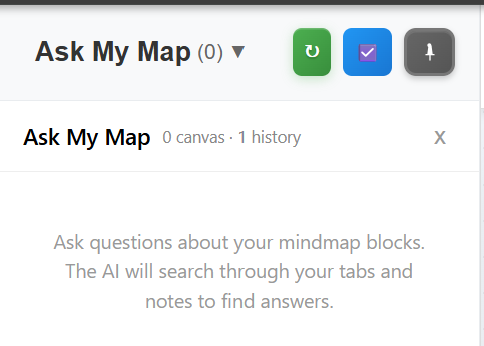
Ask My Map — question your canvas in plain language
Tabease works with a free built-in model where your browser supports one, or your own API key for OpenAI, Anthropic, Google Gemini, OpenRouter, and Together AI — configurable from your profile's AI settings.
09 Import, export & backup
The Actions dropdown in the toolbar covers moving data in and out of a canvas:
- Export JSON — a complete, re-importable backup of your nodes, edges, and layout.
- Export PNG — a flattened image of the current canvas, handy for sharing a research trail outside Tabease.
- Import JSON — restore a previous export, or bring in a map from another workspace.
- Clear data — wipe the current canvas and start fresh.
10 Keyboard shortcuts
Mnemonic shortcuts are disabled while typing in a text field, so they're always safe to reach for.
| Shortcut | Action |
|---|---|
| A | Add a block at the centre of the view |
| C | Centre the viewport on the root block |
| L | Apply the Hierarchical layout |
| R | Apply the Radial layout |
| H | Hibernate selected tab node(s) |
| W | Wake selected tab node(s) |
| T | Toggle the toolbar and sidebar |
| N | Open a new blank tab |
| S or Ctrl+F | Focus the canvas search field |
| Backspace / Delete | Delete selected blocks or connections |
| Shift+drag | Box-select multiple blocks |
| Space+drag | Pan the canvas |
| Ctrl/Cmd+scroll | Zoom the canvas |
| Ctrl+Z | Undo |
| Ctrl+Y / Ctrl+Shift+Z | Redo |
Still have questions, or ran into something this guide didn't cover?
Reach out at hello@tabease.app — we read every message.